Accessing Data
Use user data, events, and step results to personalize journeys
Journeys can access user profiles, triggering events, and data captured from previous steps. This data is available in templates, conditions, and user updates.
Data Structure
At any point during a journey, two top-level objects are available:
{
  "user": {
    "id": "abc123",
    "email": "chris@example.com",
    "phone": "+01234567890",
    "identifier": [
      { "external_id": "usr_42", "source": "default" }
    ],
    "locale": "en",
    "timezone": "America/Chicago",
    "data": {
      "first_name": "Chris",
      "plan": "premium"
    }
  },
  "journey": {
    "my_entrance": {
      "data": {
        "order_id": "ORD-1001",
        "amount": 29.99
      }
    },
    "enrich_user": {
      "body": {
        "loyalty_points": 300,
        "tier": "gold"
      }
    }
  }
}usercontains the user's profile fields and custom properties underdata.journeycontains output from previous steps, keyed by each step's data key.
Accessing User Data
User profile fields are available directly under user. Custom properties live under user.data:
{{user.email}}
{{user.locale}}
{{user.data.first_name}}
{{user.data.plan}}
Accessing Event Data
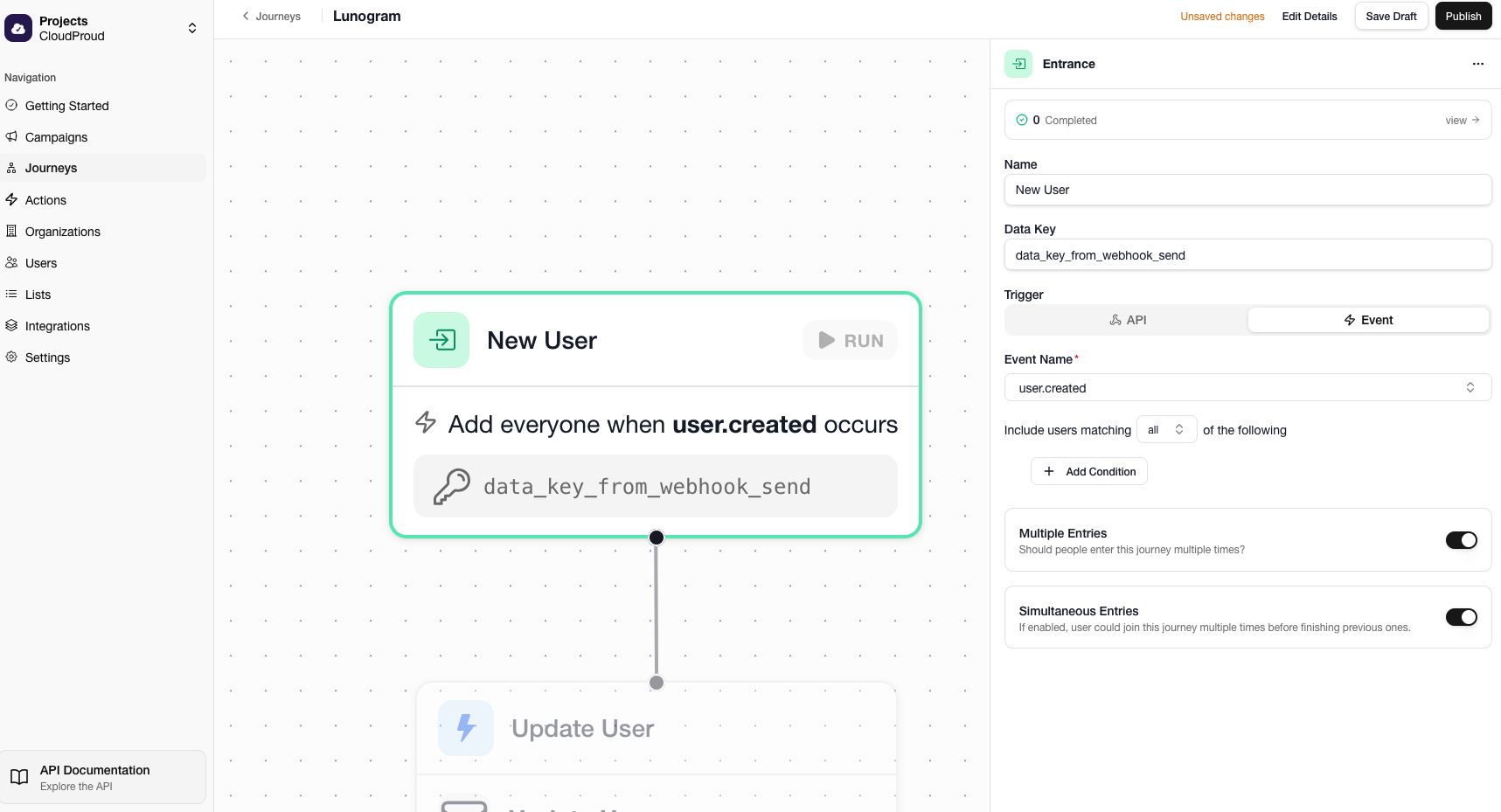
When a journey is triggered by an event, the event payload is stored under the entrance step's data key. If the entrance has a data key of my_entrance:
{{journey.my_entrance.data.order_id}}
{{journey.my_entrance.data.amount}}
Data Keys
Entrance and action steps can have a Data Key that makes their output available to later steps. You set the data key in the step's sidebar.
Action Responses
When an action step executes, its response is stored under the step's data key. For example, an action step with data key enrich_user:
{{journey.enrich_user.body.loyalty_points}}
{{journey.enrich_user.body.tier}}
Using Data in User Updates
Copy step data into user profiles:
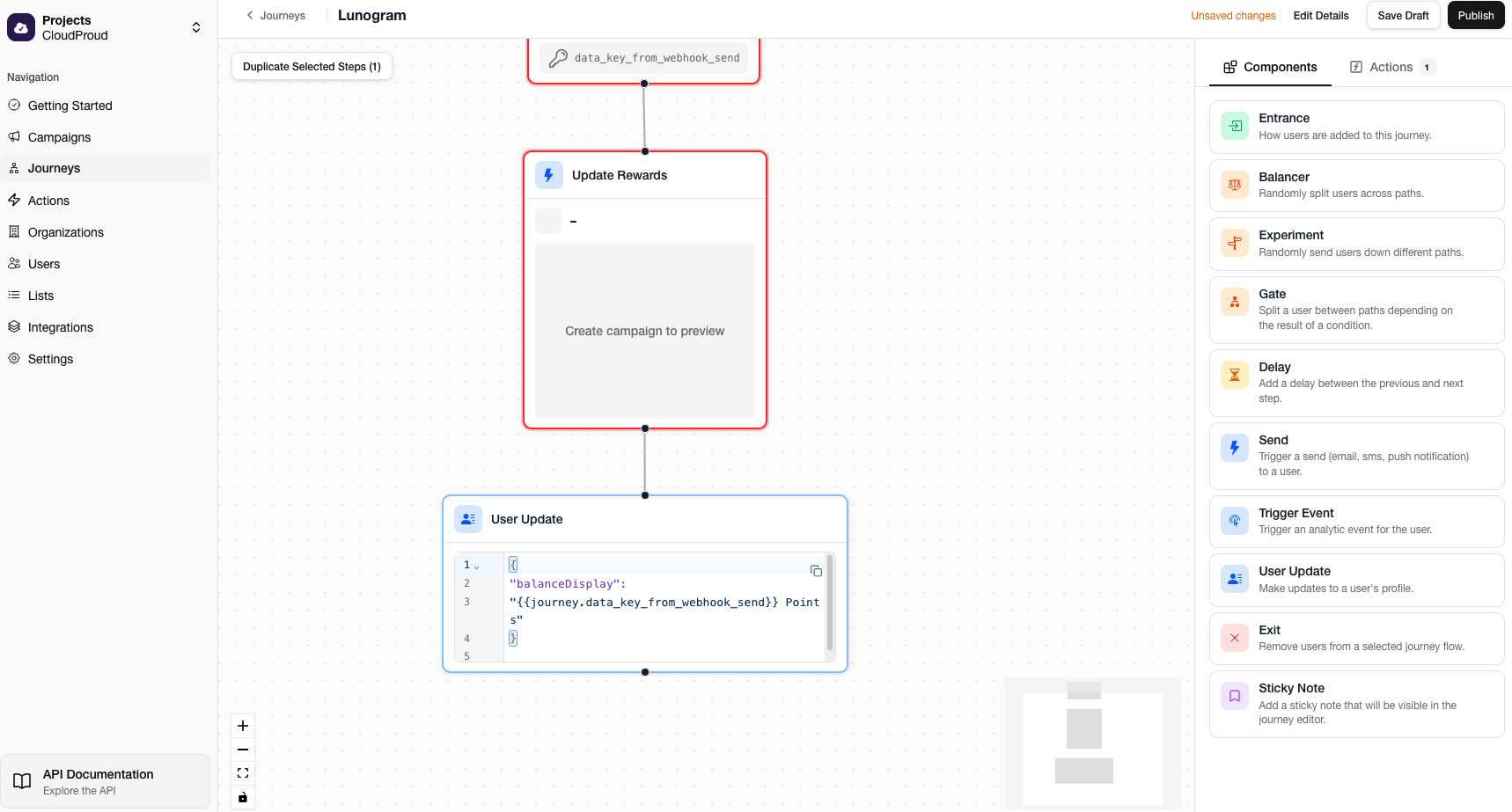
{
  "loyalty_points": "{{ journey.enrich_user.body.loyalty_points }}",
  "loyalty_tier": "{{ journey.enrich_user.body.tier }}"
}
Using Data in Campaigns
Campaign templates do not access the journey object directly. Instead, campaigns define variables — named placeholders with optional defaults. When a campaign step is used in a journey, you map journey data to these variables.
1. Define variables on the campaign
In the campaign settings, add variables such as order_id and loyalty_points. You can set a default value for each.
2. Map journey data to variables in the journey editor
When configuring a Send step, each campaign variable appears as a field. Use the variable picker or type a Liquid expression to map journey data:
| Campaign Variable | Value |
|---|---|
order_id | {{ journey.my_entrance.data.order_id }} |
loyalty_points | {{ journey.enrich_user.body.loyalty_points }} |
3. Use variables in the template
Inside the campaign template, reference variables under campaign:
Hi
{{user.data.first_name}}, Your order
{{campaign.order_id}}
earned you
{{campaign.loyalty_points}}
points!
For email campaigns using the React Email editor, the same data is available as props:
export default function Email(props: EmailProps) {
  return (
    <p>
      Your order {props.campaign.order_id} earned you{" "}
      {props.campaign.loyalty_points} points!
    </p>
  );
}
Campaign variables let you reuse the same campaign across different journeys. Each journey maps its own data to the campaign's variables independently.
Template Context Reference
The full context available when rendering a campaign template:
| Path | Description |
|---|---|
user.email | User's email address |
user.phone | User's phone number |
user.locale | User's locale |
user.timezone | User's timezone |
user.data.* | Custom user properties |
campaign.* | Campaign variables (populated from journey data or defaults) |
now | Current timestamp |
preferences_url | Link to the user's preference center |
unsubscribe_url | One-click unsubscribe link (email only, when a subscription is set) |
Summary
| Data | Path |
|---|---|
| User profile fields | user.email, user.phone, user.locale, etc. |
| Custom user properties | user.data.property_name |
| Entrance event data | journey.DATA_KEY.data.property |
| Action response | journey.DATA_KEY.body.property |
| Campaign variable (in templates) | campaign.variable_name |
Replace DATA_KEY with the data key you configured on the step.