Step Types
Learn about the different types of journey steps available in Lunogram
Journeys are built by connecting steps together. Each step type serves a different purpose.
| Step | Purpose |
|---|---|
| Entrance | Entry point triggered by events, schedules, or API calls |
| Send | Send a message (email, SMS, or push notification) |
| Gate | Split users based on conditions |
| Delay | Wait before continuing |
| Experiment | A/B test different paths |
| Balancer | Rate limit and distribute traffic |
| Action | Execute external integrations (webhooks, APIs) |
| Update | Modify user profile data |
| Schedule | Assign a user to a schedule |
| Event | Trigger an analytics event |
| Exit | End a user's progress in an entrance flow |
| Note | Add a text annotation to the canvas |
Entrance
Every journey starts with at least one entrance step. A journey can have multiple entrances, each acting as an independent flow. There are three trigger types:
A user enters the journey when a specific event is fired.
| Parameter | Description |
|---|---|
| Event Name | Which event triggers the entrance |
| Condition | Optional filter applied to the event data |
| Multiple Entries | Allow users to run through the journey more than once |
| Simultaneous Entries | Allow re-entry before the current pass completes (requires Multiple Entries) |
When Multiple Entries is off, a user can only pass through this entrance once. When enabled together with Simultaneous Entries, a user can have several active runs at the same time.
Users enter based on a schedule. Select the schedule and an offset to control when the entrance fires relative to the scheduled time.
| Parameter | Description |
|---|---|
| Schedule | The schedule to use |
| Offset | When to trigger relative to the scheduled time (e.g. 30 minutes before, immediately after) |
| Condition | Optional filter applied to the schedule event data |
| Multiple Entries | Allow users to run through the journey more than once |
| Simultaneous Entries | Allow re-entry before the current pass completes |
Internally, a scheduled entrance listens for the event scheduled.<schedule_name>, which the scheduler emits at the configured time.
No automatic trigger. Users are entered programmatically via the API. This is useful for entrances controlled by your backend or triggered from external systems.
The entrance editor shows an example cURL request. Data passed in the event field is available to downstream steps under the entrance's data key.
Each entrance step has a Data Key that makes its trigger data available to
later steps. For example, if the data key is my_entrance, downstream steps
can access event properties via journey.my_entrance.property. See Accessing
Data for details.
Send
Send a message to the user. This step wraps a campaign, giving you access to all campaign configuration options.
| Parameter | Description |
|---|---|
| Name | Display name for the step |
| Campaign | The campaign to send (create new or use existing) |
Gate
Split users between two paths based on conditions. Matching users go to the Yes path, others go to No.
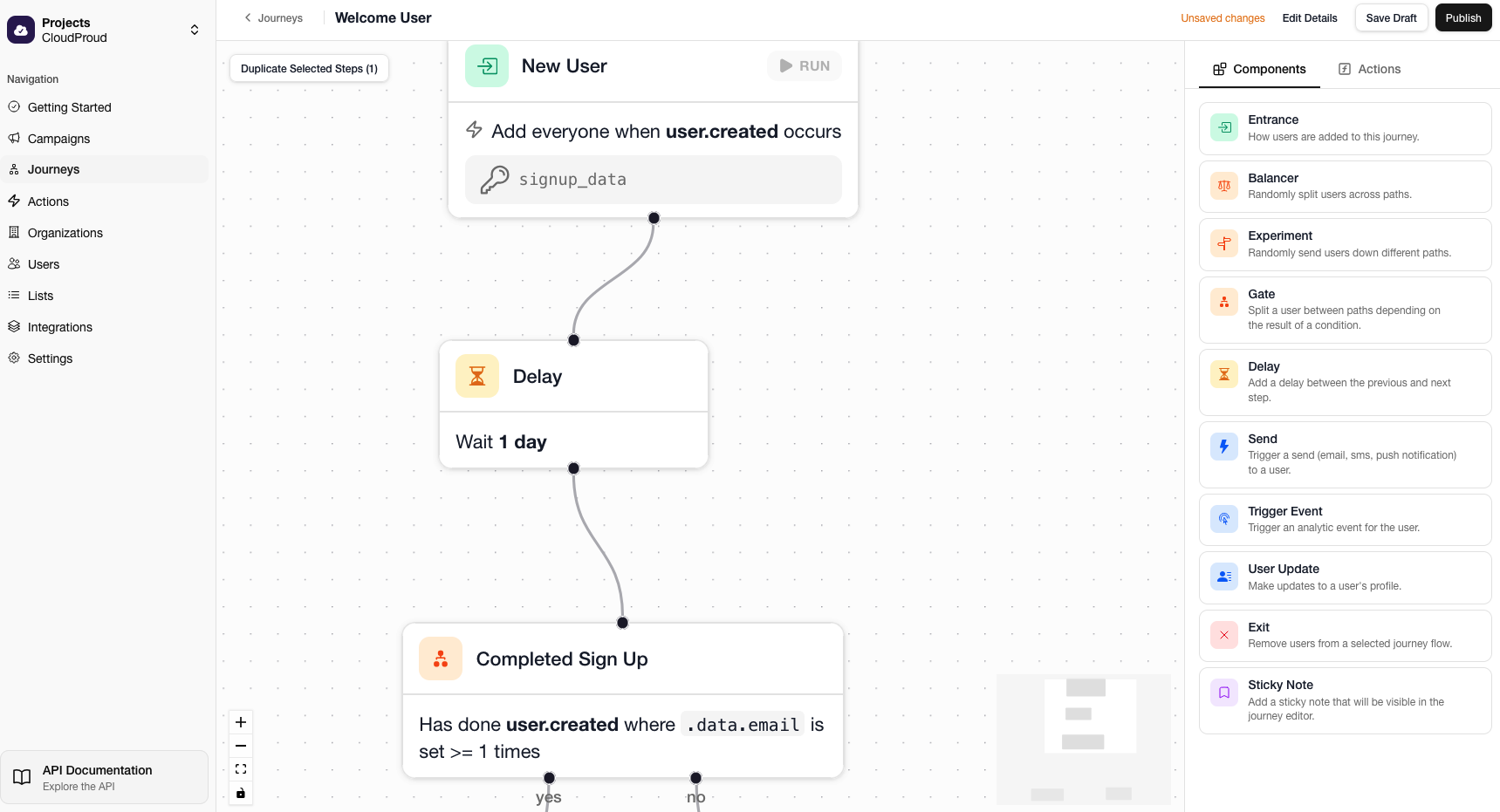
| Parameter | Description |
|---|---|
| Name | Display name for the step |
| Rule | Conditions to evaluate against the user |
Gates evaluate rules against user properties and user events. Conditions support the same rule builder used for lists, with the addition of journey variables — data from previous steps in the journey.
Available condition types
| Group | Description | Example |
|---|---|---|
| User property | Check a value on the user's profile | email ends with @company.com |
| User event | Check if the user has performed an event | User has done purchase at least 1 time |
| Journey variable | Reference data from a previous step | journey.score_lookup.status equals success |
Journey variables are resolved using Liquid templates before the rule is evaluated, allowing you to branch on data returned by earlier action or entrance steps.
Delay
Pause the journey before continuing. Three delay types are available.
All delay fields support Liquid template expressions, so you can use dynamic values from entrance events, action responses, or user data instead of hardcoded values.
Wait a fixed amount of time.
| Parameter | Description |
|---|---|
| Days | Number of days to wait |
| Hours | Number of hours to wait |
| Minutes | Number of minutes to wait |
Each field accepts a number or a Liquid template that resolves to a number:
{{ journey.my_entrance.data.reminder_days }}Wait until a specific time of day in the user's timezone. If the time has already passed today, the delay rolls forward to the next day.
| Parameter | Description |
|---|---|
| Time | Time of day in HH:mm format (user's timezone) |
| Exclusion Days | Days of the week to skip (e.g. Saturday, Sunday) |
The time field accepts a fixed value or a Liquid template that resolves to HH:mm:
{{ journey.my_entrance.data.preferred_time }}When exclusion days are set, the delay skips forward day-by-day until it lands on a non-excluded day. This is useful for avoiding weekends or specific days when you don't want the journey to continue.
Wait until a specific date in the user's timezone.
| Parameter | Description |
|---|---|
| Date | Date to continue (user's timezone) |
The date field accepts multiple formats:
| Format | Example |
|---|---|
| ISO 8601 with timezone | 2025-01-15T09:00:00Z |
| Date and time (no timezone) | 2025-01-15T09:00:00 |
| Date only | 2025-01-15 |
When the format does not include a timezone, the user's timezone is used. If no timezone is set on the user profile, UTC is the fallback.
Use a Liquid template to reference a date from earlier in the journey:
{{ journey.my_entrance.data.flight_date }}Experiment
A/B test different paths by randomly splitting users. Connect multiple steps as variants.
| Parameter | Description |
|---|---|
| Name | Display name for the step |
| Ratio | Weight for each connected step (determines percentage split) |
Example: Two variants with ratios 1 and 1 split traffic 50/50. Ratios of 3 and 1 split 75/25.
Balancer
Randomly distribute users across paths with optional rate limiting.
| Parameter | Description |
|---|---|
| Name | Display name for the step |
| Period | Rate limit window (minute, hour, day) |
| Rate Limit | Max executions per period per path |
Example: Rate limit of 5 per minute means each path processes at most 5 users per minute.
Update
Modify properties on the user's profile. Values are shallow-merged into existing data.
| Parameter | Description |
|---|---|
| Name | Display name for the step |
| Body | JSON object to merge into user properties |
Use template expressions to reference user data and journey step results:
{
  "full_name": "{{ journey.entrance.first_name }} {{ journey.entrance.last_name }}",
  "last_viewed_product": "{{ journey.product.name }}",
  "loyalty_points": "{{ journey.score_lookup.points }}"
}
The merge is shallow. Nested objects are fully replaced, not merged.
Schedule
Assign a user to a schedule. The schedule step creates or updates a schedule for the user, which the platform's scheduler then processes in the background. Schedules can be one-time or recurring.
| Parameter | Description |
|---|---|
| Schedule Name | Name of the schedule to assign the user to (required) |
| Scheduled At | When the schedule should fire (ISO 8601 datetime). Defaults to now for single schedules |
| Interval | Repeat interval (e.g. 1 day, 2 hours). When set, the schedule becomes recurring |
| Start At | When the first occurrence should start for recurring schedules. Defaults to now |
| Data Template | JSON object attached to the schedule, available to downstream steps |
All fields support Liquid template expressions, so values can be derived from user properties or earlier step results.
Single vs recurring
The schedule type is determined automatically. If Interval is provided, the schedule is recurring — the scheduler advances through occurrences at the given interval. Otherwise it is a single one-time schedule.
How schedules connect to entrances
When a schedule fires, the scheduler emits an event named scheduled.<schedule_name>. An Entrance step configured with the Scheduled trigger type listens for these events, allowing you to start a journey at the scheduled time.
This means you can use a Schedule step in one journey to set up a future trigger, and a Scheduled entrance in another journey (or the same one) to react when that time arrives.
Data template
The data template lets you attach arbitrary JSON data to the schedule. This data is included in the scheduled.<schedule_name> event when it fires, making it accessible to the entrance and downstream steps.
{
  "plan": "{{ user.plan }}",
  "renewal_date": "{{ journey.signup.renewal_date }}"
}
Event
Trigger an analytics event (useful for external analytics providers like Segment).
| Parameter | Description |
|---|---|
| Name | Display name for the step |
| Event Name | Name of the event to trigger |
| Event Body | JSON object with event properties (supports template expressions) |
Exit
End a user's active progress through a specific entrance flow. When a user reaches an exit step, all their active states for the selected entrance are marked as completed.
| Parameter | Description |
|---|---|
| Entrance Flow | Which entrance flow to remove the user from |
Why use exit steps?
A journey can have multiple entrance steps, each representing an independent flow. The exit step lets one flow control the lifecycle of another. This is useful when a later event should cancel an earlier flow.
Example: Imagine a journey with two entrances:
- Free tier flow — triggered by
user.free.tier, starts a nurture sequence encouraging the user to upgrade. - Upgrade flow — triggered by
user.tier.upgrade, welcomes the user to their new plan.
By adding an exit step in the upgrade flow that targets the free tier entrance, users who upgrade are immediately removed from the nurture sequence. Without the exit step, they would continue receiving upgrade prompts even after converting.
Note
A text annotation on the journey canvas. Notes have no effect on the journey's execution — they are purely informational, useful for documenting intent or leaving context for collaborators.
| Parameter | Description |
|---|---|
| Text | Free-form text content |